
192.168.1.1 – Router Admin Access and Troubleshooting Guide
192.168.1.1 is a private IP address commonly used by routers as a local gateway and administration address. If your router uses this address, enter http://192.168.1.1 in your browser while connected to the router’s network. You can then sign in with the appropriate administrator credentials to manage available settings. If the page does not open, checking your network’s actual gateway address is the best place to start.
How to Access Your Router Admin Panel
You can usually access your router’s administration page through a web browser without installing additional software. The exact process depends on your router’s configuration.
Step 1: Connect to Your Router
Connect your computer, laptop or phone to the network you want to manage.
You can use Wi-Fi or an Ethernet cable connected to a LAN port on the router.
Your device needs a working local connection to the router. An active internet connection is not always necessary to open the local management interface.
Step 2: Enter the IP Address
Open Chrome, Firefox, Edge, Safari or another browser.
Type the following into the address bar:
http://192.168.1.1
Press Enter. If your router uses this address and its management interface is available, the login page should appear.
Make sure you enter the address in the browser’s address bar rather than the search box.
Step 3: Sign In to the Administration Page
Enter your router’s administrator username and password.
Some devices use default credentials, while others require a password created during initial setup. If you have previously changed your password, use the current credentials.
The administrator password and Wi-Fi password serve different purposes. The administrator password protects access to router settings, while the Wi-Fi password allows devices to join the wireless network.
Step 4: Review Your Router Settings
After signing in, you may be able to manage your wireless network name, password, connected devices, security settings and other configuration options.
Available features vary by manufacturer and model. Record important existing values before changing advanced settings.
Default Username and Password
There is no universal username and password for every router using this address. Some models use admin as a default username, but others use different credentials or require users to create a password during setup.
If you cannot sign in, try these steps:
- Check the router label: Look for login details printed on the device.
- Consult the user manual: Find the instructions for your exact model.
- Visit the manufacturer’s official website: Check its support documentation.
- Consider previous changes: The original credentials may no longer work if the administrator password was changed.
Avoid repeatedly guessing passwords. The correct credentials depend on your router and its configuration.
Why Is the Router Address Not Working?
If the management page does not open, the problem may be an incorrect address, a disconnected device or a temporary network issue. Try these solutions before considering a factory reset.
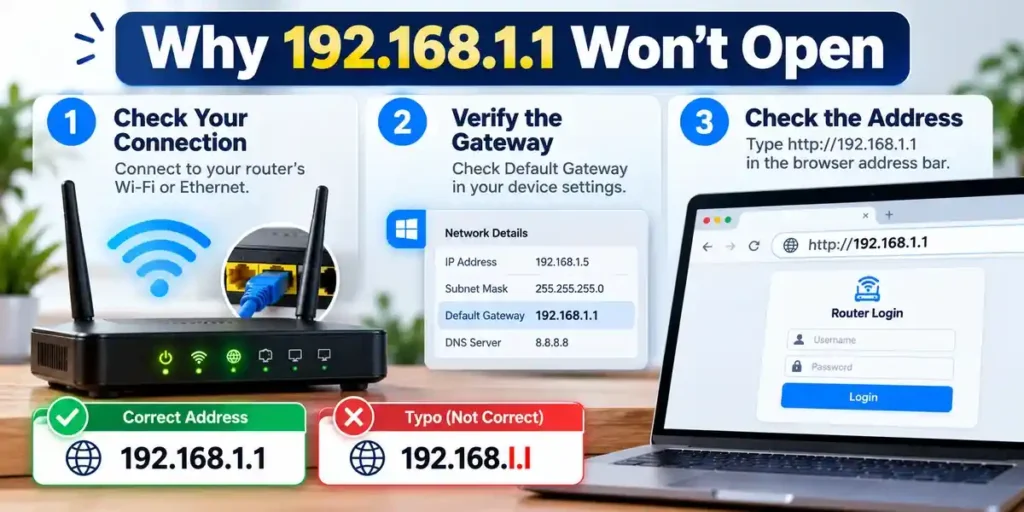
Check for Typing Mistakes
A small error in an IP address can prevent your browser from reaching the router. Common search variations include 192.168 1.1, 192.168 l 1.1, 192.168 l00 1 and 192 l.168.1.1.
These are malformed address variations, not valid replacements for the intended address.
The correct IPv4 address uses four numerical groups separated by dots. Enter it carefully in your browser’s address bar.
Check Your Network Connection
Confirm that your device is connected to the router you want to manage.
If you use Wi-Fi, verify the connected network name. If possible, test the connection using an Ethernet cable.
You can also check the router’s power and connection lights. Their meanings depend on the device, so consult its manual if necessary.
Find the Correct Gateway Address
Your router may use a different local address. Common examples include 192.168.0.1 and 10.0.0.1, but neither is automatically correct for every network.
Instead of guessing, check the Default Gateway assigned to your active connection.
For additional guidance on this alternative address, see our guide to 192.168.0.1, which explains another commonly used router gateway.
On Windows
- Connect your computer to the router.
- Open Command Prompt.
- Enter
ipconfigand press Enter. - Find your active Wi-Fi or Ethernet adapter.
- Locate the Default Gateway entry.
- Enter that address in your browser.
On macOS
- Open System Settings.
- Select Network.
- Choose your active connection.
- Open its details and locate the TCP/IP settings.
- Find the router address and enter it into your browser.
Menu names may vary between operating system versions.
On a Phone or Tablet
Open the details of your connected Wi-Fi network and look for a field labelled Router, Gateway or a similar term. The exact location depends on your device and operating system.
This helps you identify the address actually used by your network rather than relying on a generic list.
Try Another Browser or Device
If the gateway address is correct but the page remains unavailable, try another browser or a second device connected to the same router.
If a VPN or proxy may be interfering with local access, temporarily disconnect it if appropriate, test again and restore your usual protection afterward.
Restart Your Router
A restart may help resolve a temporary connection issue.
- Restart the router using its normal power procedure.
- Wait for it to finish starting up.
- Reconnect your device.
- Try opening the gateway address again.
A restart generally preserves your settings. A factory reset, by contrast, can erase custom configuration.
What Is 192.168.1.1?
192.168.1.1 is a private IPv4 address commonly assigned to a router’s local network interface. When configured as the default gateway, it provides an address that connected devices can use to communicate with other networks.
The address belongs to the private IPv4 range from 192.168.0.0 through 192.168.255.255. Private addresses are intended for local networks rather than direct public internet addressing.
However, not every router uses this address. The gateway can vary depending on the manufacturer, internet service provider and network configuration.
Is It a Private or Public IP Address?
It is a private IP address. A router may also have a public IP address for communication with external networks, but that is different from the local address used to access its administration interface.
What Is a Default Gateway?
A default gateway is the network device that a computer normally uses to send traffic to destinations outside its local network.
On a typical home network, the router’s local IP address often serves this purpose. Checking the gateway is a practical way to identify the correct address for your setup.
Other Router Login Addresses
Different routers and network configurations can use different local addresses. If you are looking for information about another gateway, our guide to 10.10.10.1 router login provides a separate resource for that address.
Always verify the address configured on your own network before attempting to sign in.
What Can You Change in the Router Admin Panel?
The administration interface may provide several options for managing your network. Available features depend on your device and firmware.
Change Your Wi-Fi Name
The wireless network name is known as the SSID. It is the name displayed when your devices search for available Wi-Fi networks.
Look for a section labelled Wireless, Wi-Fi or WLAN. If supported, you can change the name there.
After saving the change, your devices may need to reconnect.
Update Your Wi-Fi Password
Open the wireless security settings and choose a strong, unique password. Use a supported security mode recommended by your router manufacturer.
Changing the password may disconnect devices until they reconnect with the new credentials.
Review Connected Devices
Some routers display a list of connected devices. This can help you review which phones, computers and other equipment are using your network.
Device names may not always be recognizable, so verify unfamiliar entries before deciding that a device is unauthorized.
Manage Advanced Settings
Depending on the model, you may also find options for DHCP, DNS, guest networks, parental controls, port forwarding and firmware updates.
Change advanced settings only when you understand their purpose. Incorrect values can interrupt network access or affect how connected devices communicate.
How to Recover a Forgotten Administrator Password
If you cannot remember your administrator password, begin with the least disruptive recovery option.
Check Saved Credentials
Look in your password manager or saved browser credentials if you previously stored the details.
Make sure you are checking the administrator password rather than the wireless password.
Follow the Manufacturer’s Recovery Instructions
Some routers provide a password recovery feature or another supported method for regaining access. Consult the official documentation for your model.
Recovery procedures differ between devices, so do not assume that one method works for every router.
Consider a Factory Reset as a Last Resort
If recovery is unavailable, a factory reset may be necessary. Before proceeding, understand that it can erase custom settings, including your Wi-Fi name, password and internet connection configuration.
If your internet service requires special settings, contact your provider or consult the router documentation first.
Only reset a router you own or are authorized to administer, and follow the manufacturer’s instructions for your specific device.
How to Keep Your Router Secure
Once you have access to the management interface, review the security settings that matter most to your network.
- Use a strong administrator password: Change a known default password when your router supports it.
- Keep passwords distinct: Use separate credentials for administrator access and Wi-Fi.
- Review wireless security: Choose a modern security option supported by your router.
- Check for firmware updates: Follow the manufacturer’s official update instructions.
- Be careful with advanced settings: Understand changes to DNS, port forwarding and remote administration before applying them.
- Store credentials securely: A password manager can help you avoid losing access again.
If your router is managed by your internet service provider, some settings may be restricted.
Frequently Asked Questions
1. What is 192.168.1.1 used for?
It is a private IPv4 address commonly used as a router’s local address. When configured for administration, it can provide access to the router’s management interface.
2. How do I open the router administration page?
Connect to the router’s network, enter its correct gateway address in your browser and sign in using the appropriate administrator credentials.
3. Why does the address show an error?
Your device may be connected to the wrong network, the gateway address may be different, or the management interface may be unavailable. Check your connection and actual default gateway.
4. Can I use 192.168.0.1 instead?
Yes, if your router uses that address. It is not automatically interchangeable with the address discussed in this guide. Check your network’s default gateway first.
5. Can I access router settings without internet access?
Often, yes. The local management page may remain accessible during an internet outage, provided your device can still communicate with the router.
6. Is the administrator password the same as the Wi-Fi password?
Not necessarily. The administrator password controls access to router settings, while the Wi-Fi password allows devices to join the wireless network.
7. What should I do if I forget my administrator password?
Check saved credentials and the manufacturer’s recovery options. A factory reset may be required if no recovery method is available, but it can erase custom settings.
8. Is it safe to change router settings?
It is generally safe to change settings you understand and are authorized to manage. Record existing values before changing advanced options that may affect network access.
Conclusion
192.168.1.1 is a commonly used private address for accessing router settings, but it is not the default gateway for every network. Connect to the correct router, check its address and use the appropriate administrator credentials.
If the page does not open, identify your actual gateway and troubleshoot the connection before considering a reset. Taking these steps in order can help you locate the right management page without making unnecessary changes to your network.