
192.168.18.1 Login: Access Your Router Admin Panel
192.168.18.1 is a private IP address that some routers and network devices use for local administration. If it is your router’s gateway, you can enter http://192.168.18.1 in a browser to open the login page and manage available network settings.
If your device uses a different gateway, you may need another address. For example, you can check our 10.10.10.1 Router Login guide if that is the address assigned to your network device.
How to Login to 192.168.18.1
You don’t need a special application to access the router. A normal web browser is usually enough.
1. Connect to Your Router
Connect your computer, phone, or tablet to the router’s Wi-Fi network. You can also use an Ethernet cable if you’re working from a computer.
If you have several Wi-Fi networks nearby, make sure you’re connected to the one managed by the router you want to configure.
2. Open a Web Browser
Open Chrome, Edge, Firefox, Safari, or another browser.
You don’t need to search for the address on Google. The IP should be entered directly into the browser’s address bar.
3. Enter the Correct IP Address
Type: http://192.168.18.1
Then press Enter.
If the router uses this address, its administration or login page should appear.
4. Enter Your Login Credentials
Enter the username and password for your particular router.
There isn’t one universal username and password for every device using 192.168.18.1. Credentials can vary according to the manufacturer, model, firmware, and ISP configuration.
Check the label on the router or the documentation supplied with it if you’re unsure.
5. Open the Admin Panel
Once you’re authenticated, you’ll reach the router’s management interface.
Depending on the device, you may be able to change the Wi-Fi name and password, check connected devices, adjust network settings, or manage security options.
Watch the 192.168.18.1 Login Guide
If you’d rather see the process on screen, this video covers the admin login process and uses the common 192.168.l8.1 search variation.
Remember: when entering the address in your browser, use the numerical IP 192.168.18.1, not 192.168.l8.1.
What Is 192.168.18.1?
192.168.18.1 is a private IPv4 address. It can be assigned to a router, gateway, or another network device on a local network.
Private addresses are not unique across the internet. Different networks can use the same private IP without creating a public addressing conflict.
When a router is configured with 192.168.18.1 as its LAN address, connected devices can use that address to communicate with the router’s local administration interface.
The important point is that not every router uses 192.168.18.1. Your device might use 192.168.1.1, 192.168.0.1, 192.168.100.1, or another gateway.
If the page doesn’t open, check your actual Default Gateway rather than assuming the IP is correct.
192.168.18.1 Default Username and Password
There is no single login combination that works on every router using this address.
The credentials may depend on:
- Manufacturer
- Exact model
- Firmware version
- ISP configuration
- Previous setup
- Administrator account settings
Some devices have credentials printed on a sticker. Others may provide a unique administrator password during installation.
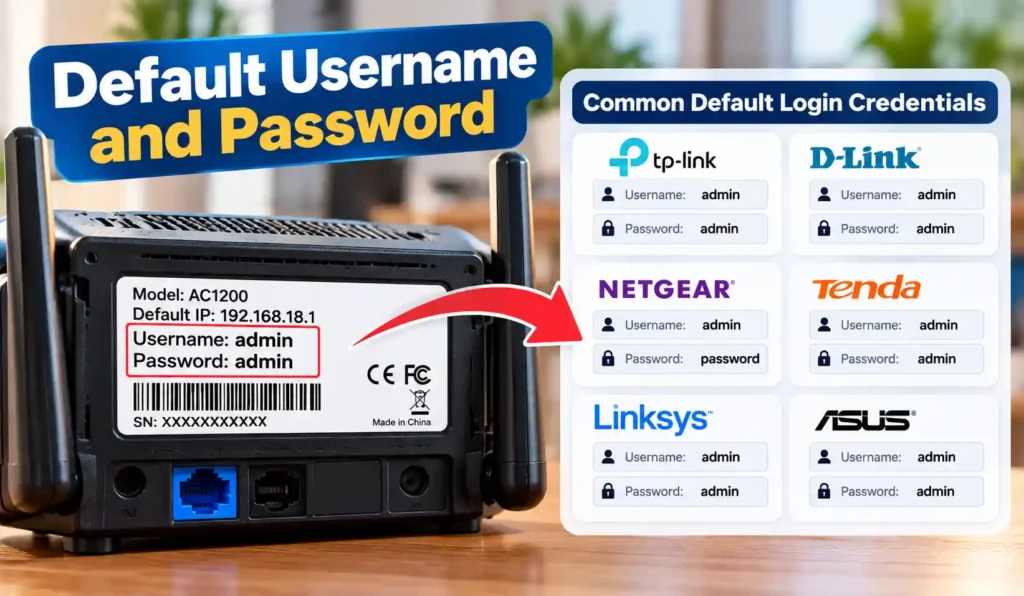
Where to Find Your Router Password
Before trying random combinations, check:
- The label on the router or ONT
- Installation paperwork
- User manual
- ISP documentation
- Manufacturer support information
If someone previously changed the administrator password, the factory credentials may no longer work.
What If the Default Password Doesn’t Work?
First, confirm that you’re using the correct credentials for the exact device model.
Don’t assume admin/admin will work. Many modern devices use a unique password or require an administrator account to be created during setup.
If the password was changed and cannot be recovered, a factory reset may be an option. Treat that as a last resort because resetting the device can remove existing configuration.
How to Find Your Router’s IP Address
If 192.168.18.1 isn’t opening, finding the Default Gateway is usually more useful than trying a list of common IP addresses.
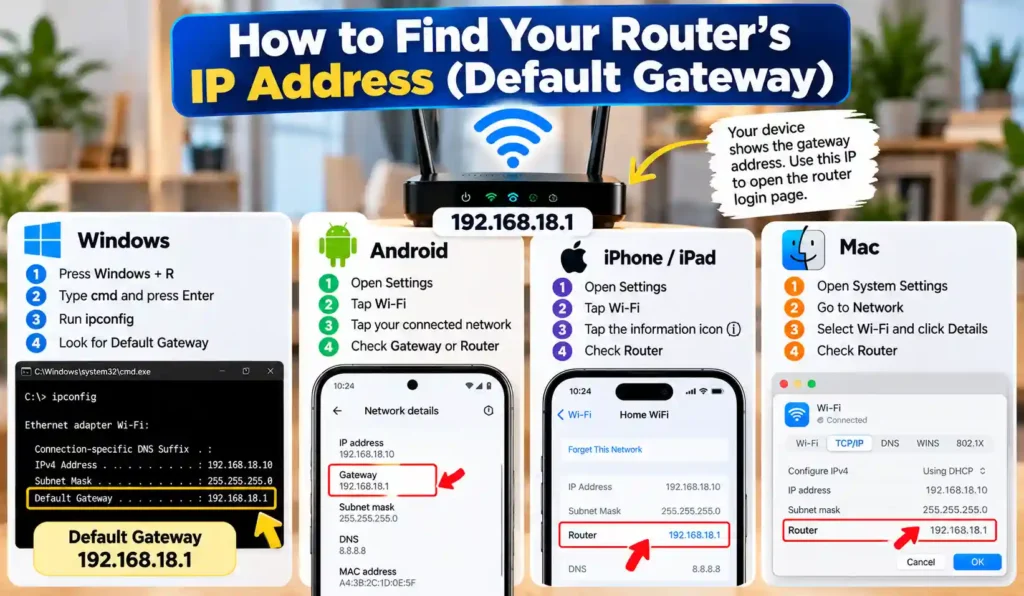
Windows
- Press Windows + R.
- Type
cmd. - Press Enter.
- Enter:
ipconfig- Press Enter.
- Find the network connection you’re currently using.
- Look for Default Gateway.
If the value is 192.168.18.1, your device is using that address as its gateway.
If you see another IP, use that address instead.
Android
The exact menu names vary between Android phones.
Usually, you can:
- Open Settings.
- Select Wi-Fi.
- Tap the connected network.
- Open its network details.
- Look for Gateway, Router, or similar information.
iPhone and iPad
Go to:
Settings → Wi-Fi → tap the information icon beside your connected network
Look for Router.
The address shown there is the local gateway.
Mac
Open your network settings and view the details for your active Wi-Fi or Ethernet connection.
Look for the Router address. That is the gateway your Mac is using.
What Can You Do After Logging In?
The options available inside the admin panel depend on your router’s firmware and your account permissions.
Change the Wi-Fi Name
The wireless network name is usually called the SSID.
You can normally find it under a section named Wi-Fi, Wireless, or WLAN.
Change the Wi-Fi Password
The wireless password is separate from the administrator password.
After changing it, devices that were connected using the old password may disconnect and need to be connected again.
Change the Admin Password
If your router allows it, change the administrator password to something unique.
This password protects access to the router’s configuration rather than simply connecting a device to Wi-Fi.
View Connected Devices
Many router interfaces provide a list of devices currently connected to the network.
Depending on the firmware, the list may show:
- Device name
- IP address
- MAC address
- Connection type
- Online/offline status
This can help you identify devices you don’t recognize.
Manage Network Settings
Advanced router interfaces may include settings for:
- DHCP
- DNS
- LAN
- WAN
- Guest Wi-Fi
- Firewall
- Port forwarding
- Wireless channels
- Access control
- Firmware updates
Be careful with advanced options. Changing DHCP, WAN, bridge mode, or similar settings without knowing their purpose can interrupt your connection.
192.168.18.1 Not Working? Try These Fixes
If the login page doesn’t load, don’t immediately reset the router. There are several simpler things to check first.
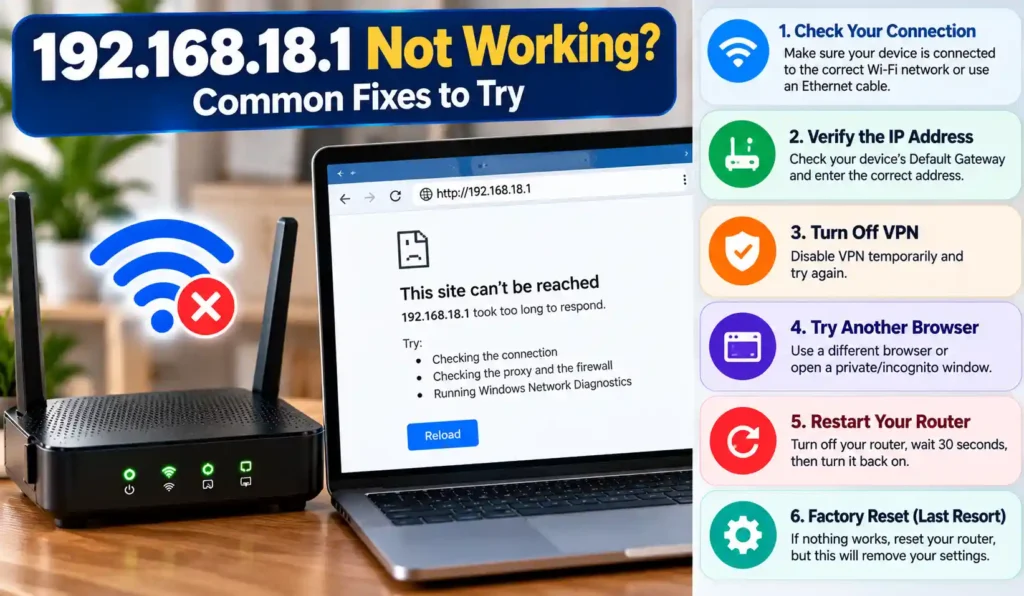
Check Your Network Connection
Make sure your device is connected to the router you’re trying to manage.
If your phone is connected to another Wi-Fi network, the router’s local address may not be reachable.
Check the Default Gateway
This is one of the most useful checks.
If your device’s Default Gateway is 192.168.1.1, for example, then your router isn’t using 192.168.18.1 as the gateway on that connection.
Check the Address Carefully
The correct numerical address is: 192.168.18.1
A browser expects four numerical sections separated by periods.
Don’t accidentally type a letter in place of a number.
Try HTTP
Start with: http://192.168.18.1
Some router interfaces don’t provide HTTPS access in the way a normal public website does.
If your manufacturer specifically instructs you to use HTTPS, follow its instructions.
Disable Your VPN Temporarily
A VPN can alter network routing and occasionally interfere with access to local devices.
Disconnect it temporarily and try the router address again.
Turn Off Mobile Data
If you’re troubleshooting from a phone, turn off mobile data temporarily and remain connected to the router’s Wi-Fi.
This helps ensure the phone is using the local network connection.
Try an Ethernet Connection
If Wi-Fi is unreliable, connect your computer directly to the router with an Ethernet cable.
This can eliminate wireless connection problems while you work on the router settings.
Restart the Router
If the router isn’t responding at all, restart it and give it enough time to complete its boot process.
Then try the login address again.
Common 192.168.18.1 Login Errors
This Site Can’t Be Reached
Check your network connection and Default Gateway first.
If your gateway is different, use that address instead.
Connection Refused
The device may not be running its web administration service at that address, or the address may belong to another device.
Check the router documentation and verify the gateway.
Took Too Long to Respond
A timeout can result from an incorrect IP address, an unavailable router, or a connection problem.
Try Ethernet if possible and confirm the gateway.
The Login Page Keeps Loading
Try another browser or a private browsing window.
If the problem continues, restart the router and check the local connection.
Username or Password Is Incorrect
Check the device label and exact model information.
Avoid assuming that common credentials such as admin/admin apply to your router.
192.168.l8.1 vs 192.168.18.1
The search term 192.168 l8 1 login usually refers to the same intended router address, but it contains a formatting or character mistake.
The correct IP is:
192.168.18.1
Not:
192.168.l8.1
The issue is the use of the letter l instead of the number 1.
An IPv4 address contains numerical sections separated by periods. A browser cannot interpret a letter inside the address as the number one.
This is also why searches such as 192.168.l8.1 change password or 192.168.l8.1 password change should be treated as search variations rather than valid IP addresses.
What About 192.168.l8.100.1?
192.168.l8.100.1 is also not a valid IPv4 address because it contains the letter l and has five sections instead of four.
If you encountered this version while searching for a router login, check the actual gateway assigned to your device before attempting to access the admin panel.
Routers and Devices That May Use 192.168.18.1
The same private address can be used by different network devices, so the IP alone doesn’t identify a particular manufacturer.
Some networking references associate 192.168.18.1 with certain Huawei, Nokia, and other gateway or ONT configurations. The exact address can vary between models and ISP firmware.
That’s why the device label and Default Gateway are more reliable than assuming a particular brand always uses one fixed IP.
How to Change Your Password After Login
If your goal is to change the password, first decide which password you mean.
Change the Wi-Fi Password
Look for Wi-Fi, Wireless, WLAN, or Security in the admin panel.
Then:
- Open the wireless settings.
- Find the password or security key field.
- Enter your new password.
- Save the changes.
- Reconnect your devices.
Change the Admin Password
For the administrator account, look for sections such as Administration, Management, Account, or System.
The exact location depends on the firmware.
Keep the admin password different from your Wi-Fi password when possible.
How to Reset Your Router
A factory reset can restore the device to its default configuration, but it should not be your first response to a login problem.
Before resetting it, try:
- Checking the Default Gateway.
- Confirming your network connection.
- Trying another browser.
- Disconnecting a VPN.
- Restarting the router.
- Checking the device documentation.
If you do perform a factory reset, be aware that it may remove your Wi-Fi name, Wi-Fi password, internet settings, administrator settings, and other custom configuration.
If your ISP manages the device, you may need their assistance to restore the connection.
Is 192.168.18.1 Safe?
192.168.18.1 is a private network address. Reaching the address locally is not the same as visiting a public website.
The security of your router still depends on how the device is configured.
Use a strong administrator password, protect your Wi-Fi with modern security supported by the router, and install firmware updates when appropriate.
Don’t share administrator credentials with other people unless they genuinely need access.
192.168.18.1 vs Other Router IP Addresses
Different routers can use different private gateways.
| IP Address | Possible Use |
|---|---|
192.168.18.1 | Some routers and network gateways |
192.168.100.1 | Some modems, routers, and fibre ONTs |
192.168.0.1 | Common router gateway |
192.168.1.254 | Used by some routers and network devices |
10.10.10.1 | Used by some networking equipment |
For example, if your equipment uses 192.168.100.1, use the dedicated 192.168.100.1 login guide rather than trying to force 192.168.18.1.
Likewise, if your gateway is 192.168.0.1, follow the instructions for that address.
The correct IP is the one your actual device is configured to use.
Frequently Asked Questions
What is 192.168.18.1?
It is a private IPv4 address that some routers and network devices use as a local gateway or administration address.
How do I access 192.168.18.1?
Connect to the relevant router, open a browser, and enter http://192.168.18.1 directly into the address bar. If the address is the device’s active gateway, its login page should appear.
What is the default password for 192.168.18.1?
There is no universal password. The credentials depend on the specific router, firmware, manufacturer, and ISP configuration.
Why is 192.168.18.1 not opening?
Your router may use another IP address. Check the Default Gateway on your computer or the Router/Gateway information on your phone.
Is 192.168.l8.1 the correct IP?
No. The correct numerical form is 192.168.18.1. The letter l in 192.168.l8.1 is a typing mistake.
Can I change my Wi-Fi password through 192.168.18.1?
If your router provides that option, yes. After logging in, look under Wi-Fi, Wireless, WLAN, or Security settings.
Is the admin password the same as the Wi-Fi password?
Not necessarily. The Wi-Fi password connects devices to the wireless network, while the admin password protects access to the router’s configuration interface.
Can I access 192.168.18.1 without internet?
Usually, yes. You don’t necessarily need an active internet connection to reach a local router page. Your device does need to remain connected to the relevant local network.
What should I do if I forgot my router password?
Check the device label and documentation first. If the password was changed and cannot be recovered, a factory reset may be possible, but it can erase the current configuration.
If 192.168.18.1 doesn’t open, check your Default Gateway before changing router settings or performing a factory reset. It is the quickest way to determine whether you’re using the address your device actually expects.
Conclusion
Getting into your router settings should not turn into a guessing game. Start by confirming that your device is connected to the right network, then check the Default Gateway before trying different addresses.
If the gateway is 192.168.18.1, enter it directly in your browser and use the administrator credentials for your specific router. When the page does not open, work through the simple checks first — verify the connection, check the IP, disable the VPN temporarily, try another browser, or use Ethernet.
And if you come across 192.168.l8.1 or another strange variation, remember that a single letter can make the whole address invalid. The correct numerical address is what matters.