
192.168.8.1 Login: How to Access Your Router Admin Panel
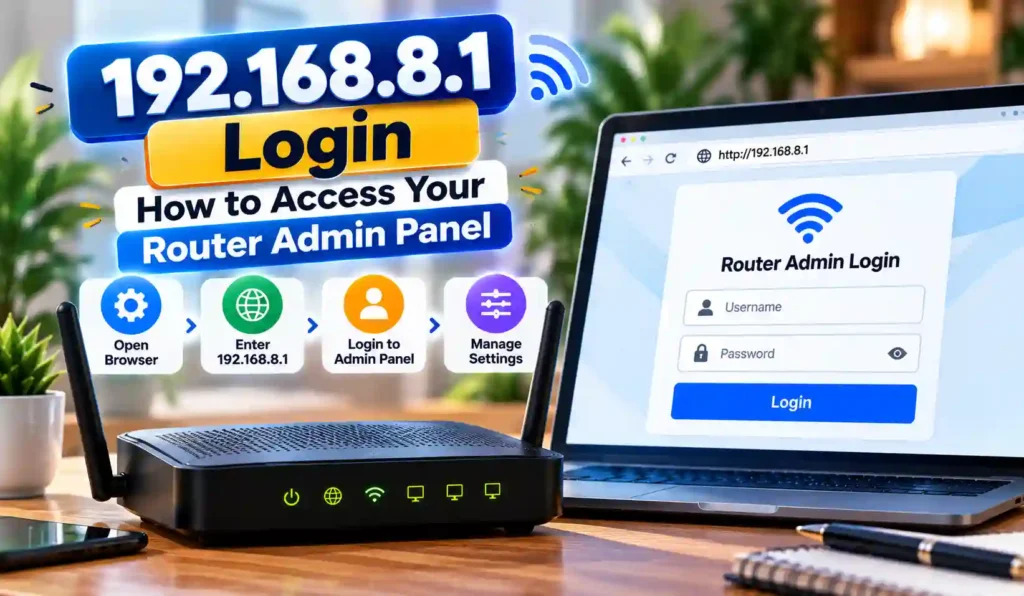
If you are trying to access your router settings, 192.168.8.1 may be the local IP address you need. This private IP address is commonly used by some Huawei Mobile WiFi devices, 4G/5G routers, CPE devices, and other networking equipment.
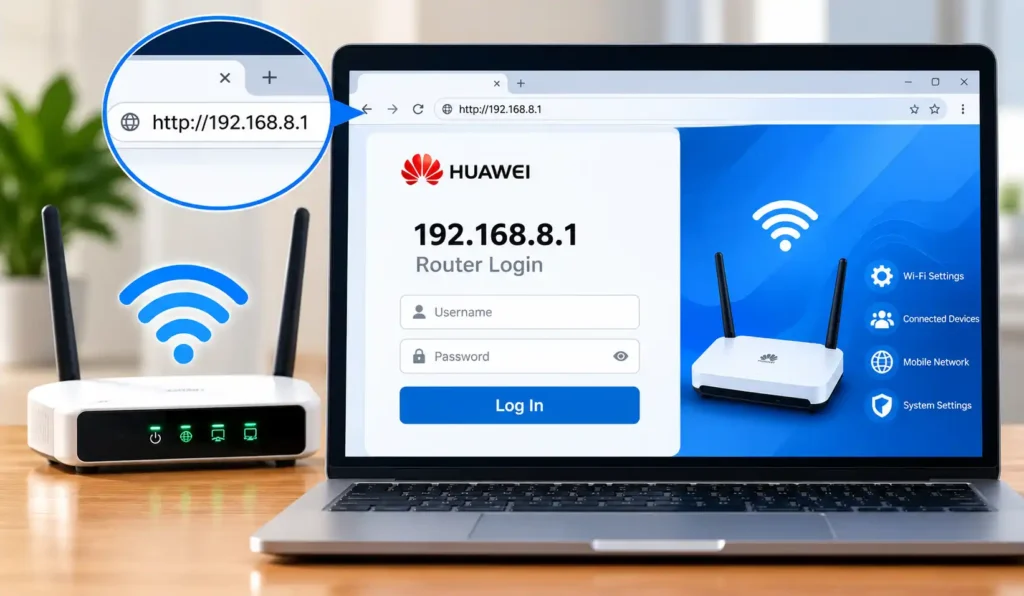
To log in, connect your phone or computer to the router’s Wi-Fi or Ethernet network, open a web browser, and enter http://192.168.8.1 in the address bar. Then enter the administration password for your specific device.
If you are looking for another router login address, you can also use our 10.10.10.1 Router Login guide for help with accessing a different local gateway.
192.168.8.1 is a private local IP address that can be used to access a router or Mobile WiFi administration panel. It does not require a public internet connection, but your device must be connected to the correct local network.
What Is 192.168.8.1?
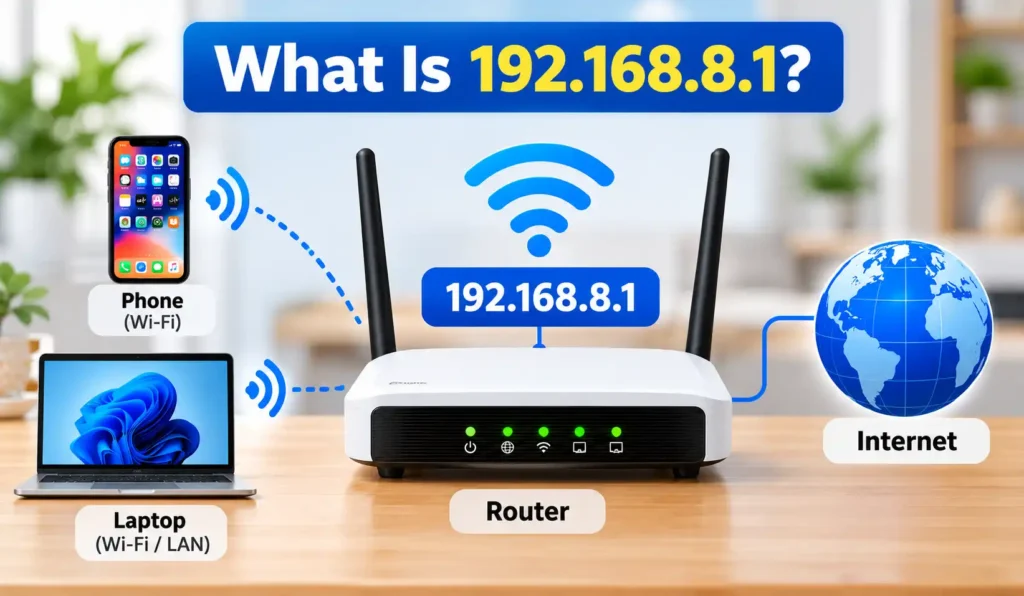
192.168.8.1 is a private IPv4 address that can be used as a router’s local gateway and administration address. Unlike a public IP address, it is designed for communication inside a local network.
When a compatible router uses this address, entering http://192.168.8.1 in your browser can open its web-based management panel. From there, available settings may include Wi-Fi, connected devices, mobile network configuration, security, and other router options.
The address belongs to the private 192.168.0.0/16 IPv4 range. However, not every router uses 192.168.8.1. Your device’s actual Default Gateway is the best way to confirm which local IP address you should use.
If you see IP 192.168 8.1 in a search or network setting, it generally refers to the same address written with a missing separator. The correct format is:
How to Login to 192.168.8.1
The login process is usually straightforward.
Step 1: Connect to Your Router
First, connect your phone, laptop, or computer to the router you want to manage.
You can connect through:
- Wi-Fi
- Ethernet cable
- A direct LAN connection
Make sure you are connected to the correct router. If your device is connected to another Wi-Fi network, the local login page may not open.
Step 2: Open a Web Browser
Open a modern browser such as:
- Google Chrome
- Microsoft Edge
- Mozilla Firefox
- Safari
You do not need to search Google for the address.
Step 3: Enter the Correct Address
Type the following directly into your browser’s address bar:
http://192.168.8.1
Do not enter it into the search box.
Also avoid adding:
- www
- spaces
- extra numbers
- unnecessary characters
Step 4: Enter Your Admin Password
If the router uses 192.168.8.1, you should see its local login or management page.
Enter the administration credentials assigned to your router.
Remember that the admin password is not always the same as the Wi-Fi password.
Step 5: Open the Admin Panel
After successful login, you can access the settings supported by your particular router.
Depending on the model, you may find options for:
- Wi-Fi
- WLAN
- SSID
- Wi-Fi password
- Connected devices
- APN
- Mobile network
- LAN settings
- Security
- System settings
- Firmware
Watch the 192.168.8.1 Login Process
The following video can help users understand the basic login process and where the router administration page is accessed:
The exact interface can look different because router menus vary by manufacturer, model, firmware, and provider.
192.168.8.1 Username and Password
There is no single universal username and password that works on every device using 192.168.8.1.
Your login credentials can depend on:
- Router model
- Manufacturer
- Firmware
- ISP configuration
- Previous password changes
Some older routers may use simple factory credentials, but you should not assume that admin/admin will work on every device.
Instead, check the label on the router first. The required information may be printed on the bottom, back, or inside the device.
Look for labels such as:
- Admin Password
- Web UI Password
- Login Password
- Device Password
- Username
- Password
If someone previously changed the administrator password, the original credentials may no longer work.
Admin Password vs Wi-Fi Password
These two passwords have different purposes.
| Credential | Purpose |
|---|---|
| Wi-Fi password | Connects your devices to the wireless network |
| Admin password | Opens the router’s management panel |
| SSID | The name of your Wi-Fi network |
For some devices, the initial credentials may be related, but you should not assume they are identical.
Huawei’s documentation also distinguishes the management-page login password from the WLAN connection password.
Which Routers Use 192.168.8.1?
The address can be found on different networking devices, but it is particularly associated with some Huawei networking equipment.
Huawei Mobile WiFi
Some Huawei Mobile WiFi products use 192.168.8.1 as their local management address.
Huawei 4G and 5G Routers
Some Huawei 4G/5G routers and CPE devices can also use this address.
GL.iNet Routers
Some GL.iNet router configurations use 192.168.8.1 for local administration.
However, the brand alone does not guarantee the address. A router may have a different LAN IP because of its model, firmware, configuration, or network setup.
The safest method is to check the device label or the Default Gateway shown by your connected device. Huawei’s own support information also notes that some providers can use customized IP addresses.
How to Access 192.168.8.1 From a Phone
You can access the router admin page from a smartphone as long as the phone is connected to the router’s network.
Android
- Open Settings.
- Go to Wi-Fi or Network & Internet.
- Connect to the router’s Wi-Fi.
- Open Chrome.
- Enter
http://192.168.8.1. - Enter your router’s admin password.
If the page does not open, temporarily disable mobile data and try again.
iPhone
- Open Settings.
- Tap Wi-Fi.
- Connect to the correct router network.
- Open Safari.
- Enter
http://192.168.8.1. - Enter the administrator password.
Tap the information icon beside your connected Wi-Fi network if you need to check the router address.
Some phones can automatically switch to mobile data when a Wi-Fi network does not provide internet access. Turning mobile data off temporarily can help maintain the local connection to the router.
How to Find Your Router’s IP Address
If 192.168.8.1 does not open, do not keep guessing different IP addresses. Check the actual gateway assigned to your device.
Windows
On Windows:
- Press Windows + R.
- Type
cmd. - Press Enter.
- Type:
ipconfig
- Press Enter.
- Find Default Gateway.
If you see: 192.168.8.1
then that is the local gateway your device is currently using.
If another IP address appears, use that address instead.
Mac
On macOS, open your network settings and view the details for your active Wi-Fi or Ethernet connection.
Look for the Router or gateway address.
Android
The exact menu names depend on your Android version and manufacturer, but the general process is:
- Open Settings.
- Tap Wi-Fi or Network & Internet.
- Select your connected network.
- Open network details.
- Look for Gateway or Router.
iPhone
On iPhone:
- Open Settings.
- Tap Wi-Fi.
- Tap the information icon beside the connected network.
- Find Router.
The address shown there is your local gateway.
Checking the gateway is more reliable than randomly trying common router IP addresses. GL.iNet’s documentation also recommends checking the IPv4 Default Gateway when 192.168.8.1 cannot be accessed.
What Can You Do After Logging In?
Once you successfully access the router administration panel, the available features depend on the device.
Common options include:
Change the Wi-Fi Name
The Wi-Fi name is also called the SSID.
You can usually find it under a menu such as:
Wi-Fi → WLAN → Basic Settings
Change the Wi-Fi Password
You can change the wireless password from the Wi-Fi or WLAN settings.
Use a strong password that is difficult for other people to guess.
Manage Connected Devices
Some routers let you see phones, laptops, smart TVs, and other devices connected to the network.
Depending on the router, you may also be able to block or restrict devices.
Configure APN Settings
4G and 5G routers may include APN settings for the mobile network connection.
These settings can vary by network provider, so avoid changing them unless you know the correct values.
Change the Admin Password
Changing the default or initial administration password can improve the security of the router.
Use a unique password that is different from your Wi-Fi password where possible.
Manage Other Network Settings
Depending on your device, the administration panel may also provide settings for:
- LAN
- WAN
- DHCP
- DNS
- Firewall
- Firmware
- Network mode
- System information
The available options vary considerably between router models.
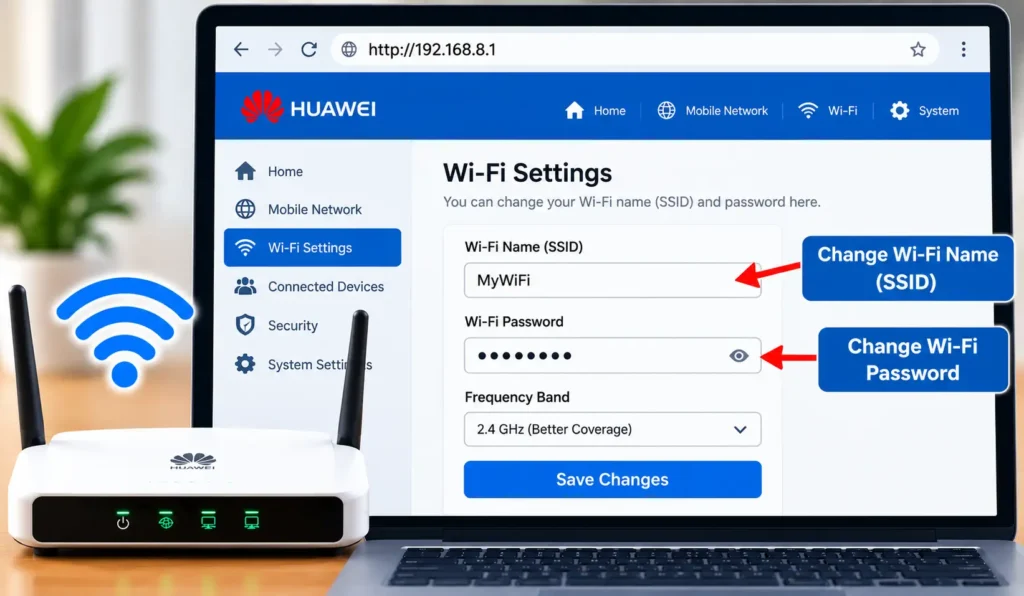
How to Change Wi-Fi Name and Password Using 192.168.8.1
If your device supports these settings, you can normally change them from the router administration panel.
- Connect to the router.
- Open
http://192.168.8.1. - Log in with the administrator password.
- Open Wi-Fi Settings or WLAN Settings.
- Find the Wi-Fi name or SSID field.
- Enter your new Wi-Fi name.
- Find the Wi-Fi password field.
- Enter your new password.
- Save or apply the changes.
After changing the Wi-Fi credentials, connected devices may disconnect. Reconnect them using the new Wi-Fi password.
On supported Huawei Mobile WiFi devices, Huawei’s documented process is to access 192.168.8.1 and then go to Wi-Fi Settings → Wi-Fi Basic Settings to view or change the Wi-Fi name and password.
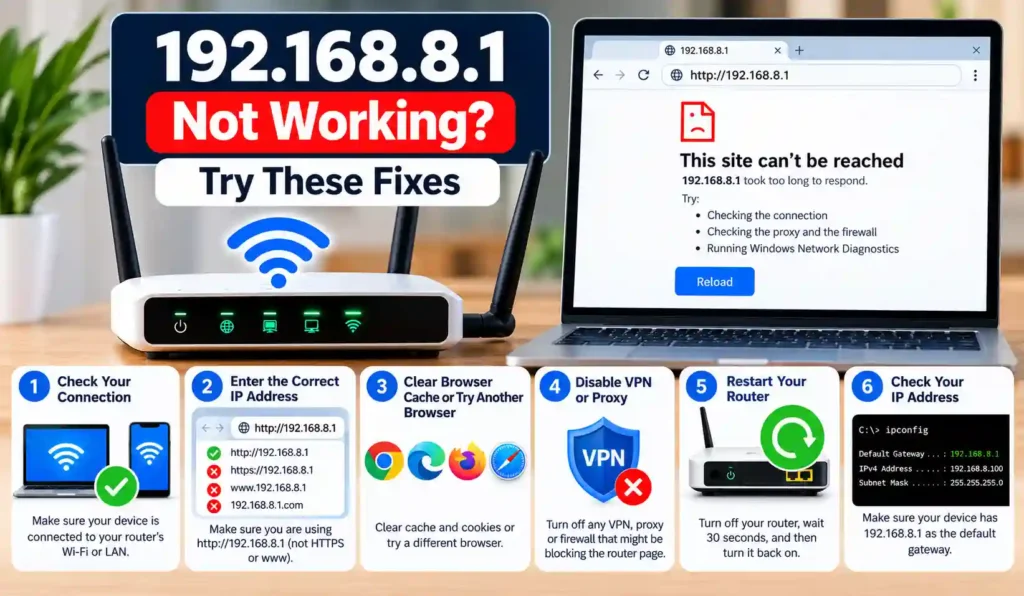
192.168.8.1 Not Working? Try These Fixes
If the page does not open, the problem does not necessarily mean the router is broken.
Try the following fixes in order.
1. Check Your Wi-Fi Connection
Make sure your phone or computer is connected to the router you are trying to manage.
Do not use another Wi-Fi network or a mobile hotspot.
2. Enter the Address Correctly
The correct address is:
192.168.8.1
For local router access, try:
http://192.168.8.1
Do not enter spaces or extra characters.
3. Use the Browser Address Bar
Do not type the IP into Google or another search engine.
Enter it directly into the URL/address bar.
4. Turn Off Mobile Data
If you are using a phone, temporarily disable mobile data and stay connected to the router’s Wi-Fi.
This can prevent the phone from switching away from the local network.
5. Disable Your VPN
A VPN can sometimes route local traffic differently and prevent access to the router administration page.
Temporarily disconnect the VPN and try again.
6. Check the Default Gateway
On Windows, run:
ipconfig
Then check Default Gateway.
If it shows something other than 192.168.8.1, use the address shown there.
7. Try Another Browser
If the page does not load correctly, try Chrome, Edge, Firefox, or Safari.
You can also open an incognito/private window to rule out cached data or browser extensions.
8. Restart the Router
Turn the router off, wait briefly, and turn it back on.
Wait until the device finishes starting, then try the login address again.
9. Check Whether the Router IP Was Changed
The router may no longer use 192.168.8.1.
This can happen after a configuration change or with certain firmware and network setups.
Check the current gateway instead of repeatedly trying the same address.
10. Consider a Factory Reset Only as a Last Resort
A factory reset can remove custom settings, including Wi-Fi credentials and other network configuration.
Do not reset the router simply because the login page is not opening.
First confirm the network connection and actual gateway.
GL.iNet’s troubleshooting documentation identifies incorrect network connection, changed router IP, browser cache/extensions, VPN interference, and other issues as possible causes when its 192.168.8.1 administration page cannot be accessed.
If your device uses another common gateway, our 192.168.0.1 Router Login guide can help you follow the correct login process.
Common 192.168.8.1 Typing Mistakes
People sometimes search for or type variations of the correct address.
For example:
- 192.168 8.1
- 192 l 168.8 1
- 192 168.8 1
- 192.168.8.l
- 192.168.81
- 192.168.8.1.
- 192-168-8-1
These variations are not the correct IPv4 format for the router address.
The correct address is: 192.168.8.1
The letter l should not be used in place of the number 1, and the four number groups must be separated by dots.
How to Reset Your Router If You Forgot the Password
If you cannot remember the administrator password, check the router label and manufacturer’s documentation first.
Some devices provide password recovery options through their management app or support system.
A factory reset should be your last option.
Before resetting, remember that it can remove:
- Wi-Fi name
- Wi-Fi password
- APN settings
- LAN configuration
- Custom security settings
- Other personalized router settings
After a reset, the device returns to its factory configuration, and you may need to set it up again.
192.168.8.1 vs 192.168.1.1 vs 192.168.0.1
These addresses can all be used as private local router gateways, but they are different IP addresses.
| IP Address | Type | Common Use |
|---|---|---|
| 192.168.8.1 | Private IP | Some Huawei/GL.iNet and other devices |
| 192.168.1.1 | Private IP | Many home routers |
| 192.168.0.1 | Private IP | Many routers and network devices |
| 192.168.100.1 | Private IP | Some routers, modems and ONTs |
Only the address assigned to your device will take you to its administration page.
If your modem, router, or fibre ONT uses 192.168.100.1, you can follow our dedicated guide:
Is 192.168.8.1 a Private IP Address?
Yes. 192.168.8.1 is a private IPv4 address.
It is intended for use inside a local network rather than as a public internet address.
This means that entering 192.168.8.1 in your browser normally works only when your device has a connection to the network where that address is assigned.
It is not the same thing as your public IP address.
Your public IP is normally assigned by your internet service provider, while 192.168.8.1 can be used internally by a router or other network device.
192.168.8.1 Security Tips
After logging into your router, take a few basic security steps.
Change the Default Admin Password
If your device uses an initial or simple administrator password, replace it with a unique password.
Use a Strong Wi-Fi Password
Avoid easily guessed passwords based on your name, phone number, address, or simple number sequences.
Keep Router Firmware Updated
Firmware updates can include security fixes, stability improvements, and new features.
Check your manufacturer’s instructions before installing an update.
Review Connected Devices
Look through the connected-device list if your router provides one.
If you see an unfamiliar device, change your Wi-Fi password and investigate the connection.
Be Careful With Remote Management
If your router provides remote administration, understand what it does before enabling it.
For most home networks, local administration is sufficient unless there is a specific reason to allow remote access.
Frequently Asked Questions
What is 192.168.8.1 used for?
192.168.8.1 can be used as a local gateway and administration address on compatible routers, Mobile WiFi devices, CPE equipment, and other networking devices.
How do I login to 192.168.8.1?
Connect your device to the router’s network, open a browser, enter http://192.168.8.1, and enter the administrator credentials for your specific device.
What is the default username and password for 192.168.8.1?
There is no universal username and password for every device using 192.168.8.1. Check your router’s label, manual, manufacturer documentation, or provider instructions for the correct credentials.
Why is 192.168.8.1 not opening?
Common reasons include being connected to the wrong network, using a different router gateway, having mobile data or a VPN enabled, browser problems, or a changed router IP.
Can I access 192.168.8.1 from my phone?
Yes. Connect your phone to the router’s Wi-Fi and enter http://192.168.8.1 in Safari or Chrome. If necessary, temporarily disable mobile data.
How do I find my router’s IP address?
On Windows, open Command Prompt and run ipconfig. Look for Default Gateway. On phones, open the details of your connected Wi-Fi network and look for Router or Gateway.
Can I access 192.168.8.1 without internet?
Yes. A router’s local administration page can usually be accessed without an active internet connection as long as your device is properly connected to the router’s local network.
Is 192.168.8.1 the same as 192.168.1.1?
No. They are different private IP addresses. Your router will respond only to the local gateway address configured for that device.
How do I change my Wi-Fi password using 192.168.8.1?
Log in to the router administration panel, open the Wi-Fi or WLAN settings, change the wireless password, and save the settings. The exact menu names vary by router model.
What should I do if I forgot my 192.168.8.1 admin password?
Check the device label and manufacturer’s recovery options first. If the password was changed and cannot be recovered, a factory reset may be necessary, but it can erase your custom settings.
Conclusion:
192.168.8.1 is a private local address that can provide access to the administration panel of compatible routers and networking devices. The basic process is simple: connect to the correct network, enter http://192.168.8.1 in your browser, and sign in with your device’s administrator credentials.
If the page does not open, the most important step is to check your Default Gateway instead of repeatedly guessing IP addresses. Also check your Wi-Fi connection, temporarily disable mobile data and VPNs, and try another browser before considering a factory reset.
Once you have access, you can use the router’s administration panel to manage supported Wi-Fi, network, security, and device settings.