
192.168.1.1 Login: Default Username, Password and Router Setup
If you want to manage your home Wi-Fi, change your network password, or check your router settings, you need access to its admin panel. Most routers let you manage these settings through a web browser, but the correct login address depends on your router model. If your device uses a different gateway, our guide to 10.10.10.1 Router Login can help you understand the alternative login process.
How to Log In to Your Router
Accessing your router’s admin panel through 192.168.1.1 is usually simple. You do not need to install special software or download an application. A phone, tablet, or computer connected to your router is enough to get started.
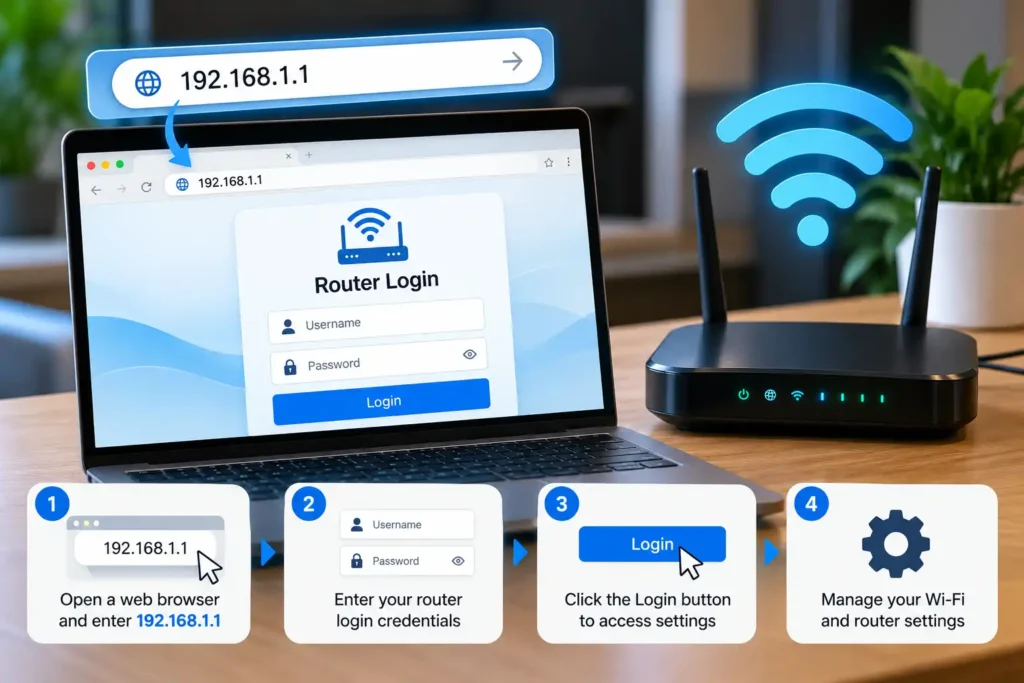
Follow these steps to get started:
- Connect your device to your router’s Wi-Fi network or use an Ethernet cable.
- Open a web browser such as Chrome, Firefox, Safari, or Edge.
- Type 192.168.1.1 into the browser’s address bar and press Enter.
- Wait for the router login page to appear.
- Enter your router’s administrator username and password.
- Select the login button to open the settings dashboard.
Make sure you enter the address in the browser’s address bar, not in a search engine. If the page does not load, your router may use a different local address. You can check the default gateway in your device’s network settings to find the correct one.
If you prefer to see the process rather than follow written steps, this router login video tutorial may help you understand how to access the admin page and follow the login process.
What Is the Default Router Username and Password?
The administrator username and password allow you to access your router’s configuration settings. These details are different from the password you use to connect your phone or laptop to Wi-Fi.
Some older router models use common default credentials, such as admin for the username and admin or another simple value for the password. However, these details do not work on every device. Newer routers may ask you to create an administrator password during the initial setup.
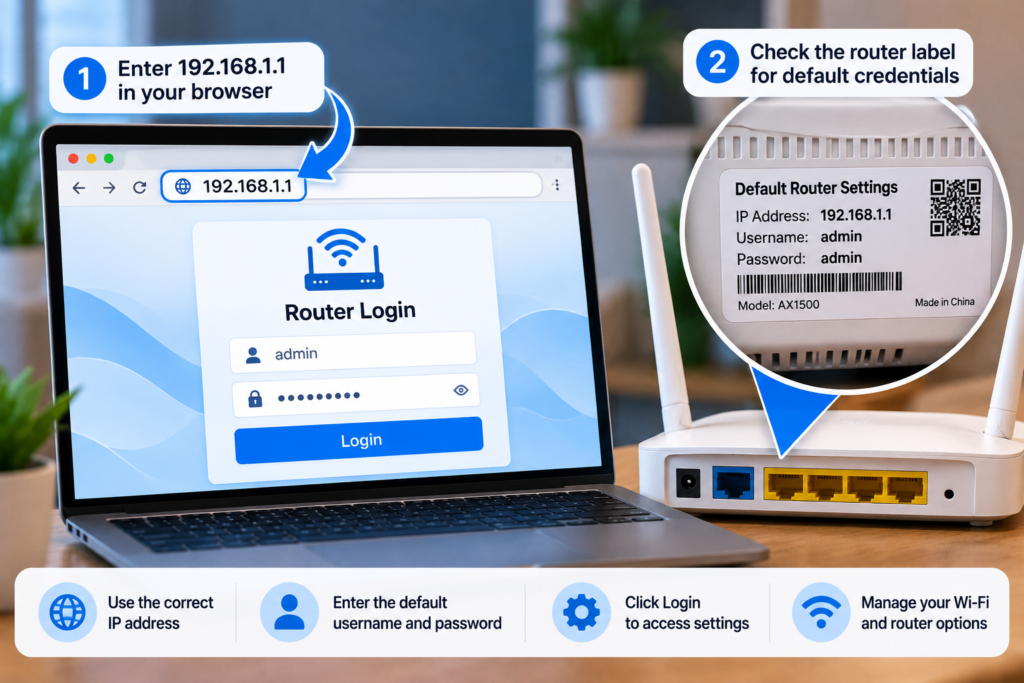
Here are the best ways to find your login details:
- Check the router label: Look at the sticker on the back or bottom of the device. It may show the default login information.
- Read the user manual: The manual usually explains how to access the management page.
- Visit the manufacturer’s support website: Search for instructions that match your exact router model.
- Check your setup records: If you configured the router before, you may have saved the administrator password.
Avoid trying random passwords repeatedly. Some routers temporarily restrict access after several failed login attempts. If you previously changed the administrator password, the original default password may no longer work.
Which IP Address Should You Use?
Not every router uses the same private IP address. The correct address depends on the manufacturer, model, and network configuration. Some routers also allow the administrator to change the default gateway.
For example, certain TP-Link routers use a different address from some Linksys models. This is why it is better to check your device’s actual gateway instead of assuming every router uses the same login page.
If your router uses 192.168.0.1, open that address in your browser instead. It is another commonly used private address for router administration. You can also check the router label or manufacturer’s documentation to confirm which address applies to your device.
How to Find Your Router’s IP Address
If the login page does not open, your router may have a different gateway address. You can find it through your computer’s network settings.
On Windows
- Connect your computer to the router.
- Press Windows + R to open the Run window.
- Type
cmdand press Enter. - Enter
ipconfigin Command Prompt. - Find the active Wi-Fi or Ethernet adapter.
- Look for the Default Gateway entry.
The address shown beside Default Gateway is usually the local address you need to access your router.
On an Android Phone
Open Settings and go to Wi-Fi or Network settings. Select the network you are connected to and look for details such as Gateway, Router, or Network information. The exact menu names depend on your phone and Android version.
On an iPhone
Open Settings, select Wi-Fi, and tap the information icon beside your connected network. Look for the Router field to see the local gateway address.
On a Mac
Open System Settings and select Network. Choose your active Wi-Fi or Ethernet connection and review its TCP/IP details. The Router field normally shows the gateway address.
If your device shows a different address, use that value instead of repeatedly trying the same one. For more guidance, consult your router manufacturer’s official documentation.
How to Fix Router Login Problems
Sometimes the login page refuses to open even when you enter the correct address. The problem may be caused by an incorrect gateway, a network connection issue, browser settings, or a changed administrator password.
Try these solutions one at a time.
1. Check Your Network Connection
Make sure your phone or computer is connected to the router you want to manage. If you are connected to mobile data or another Wi-Fi network, the local administration page may not be available.
For a more reliable test, connect your computer directly to a LAN port on the router using an Ethernet cable.
2. Check the Address Carefully
A small typing mistake can send you to the wrong page. Enter the complete IP address in the browser’s address bar. Avoid adding spaces, missing numbers, or unnecessary characters.
If you typed an incomplete address or a misspelled version, correct it before trying again. You should also confirm that the address matches your router’s actual gateway.
3. Try Another Browser
If the page does not load in your usual browser, try another one. You can also close unnecessary tabs, clear the browser cache, or temporarily disable a VPN that may interfere with access to your local network.
These steps can help identify whether the issue comes from the browser or the network connection.
4. Restart Your Router
A restart can resolve some temporary connection problems. Turn off the router, wait around 30 seconds, and turn it back on. Give it a few minutes to reconnect before trying the login page again.
A normal restart is different from a factory reset. Restarting generally keeps your saved settings, while a factory reset can erase your custom configuration.
5. Check Whether the Gateway Has Changed
Your router’s local address may have been changed during setup. If the usual address does not work, check the Default Gateway on a connected device and use the address shown there.
For example, some networks use 192.168.1.254 instead. This is another possible local gateway, although it is not the default for every router. Always verify the address for your particular network.
6. Recover a Forgotten Administrator Password
If the login page opens but rejects your password, check the router label and manual first. If you previously created a custom password, the factory default may not work.
Some manufacturers offer a password recovery option. If recovery is unavailable, a factory reset may be necessary. Before doing this, understand that you could lose your Wi-Fi name, password, internet settings, and other saved configuration details.
How to Change Your Wi-Fi Name and Password
Once you have access to the administrator dashboard, you can usually update your wireless network settings. The menu names vary by manufacturer, but the general process is similar.
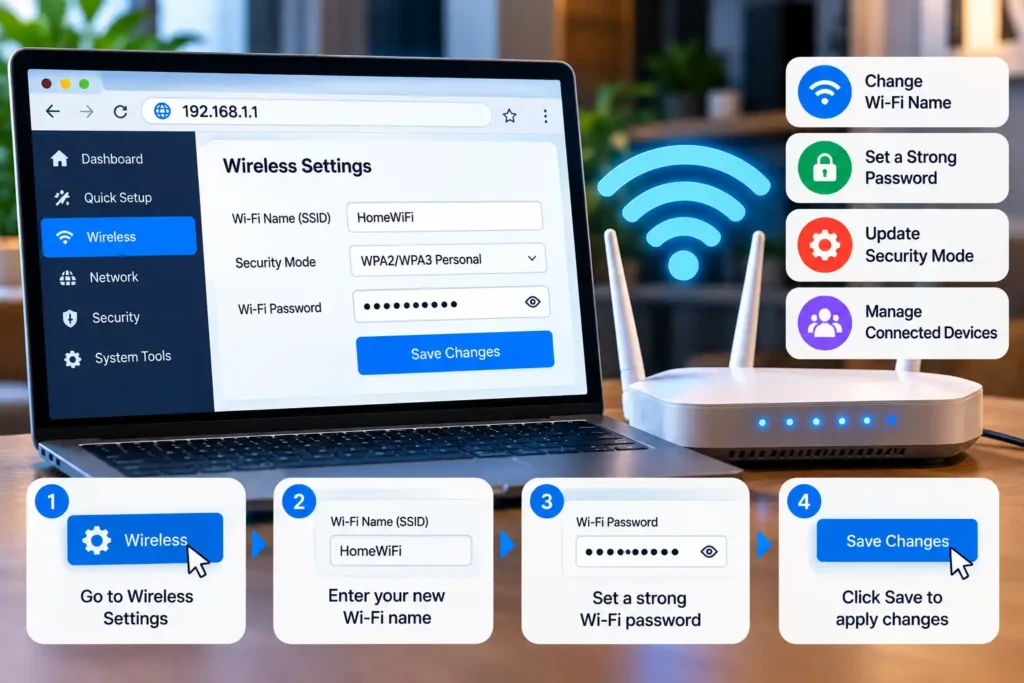
- Open the router’s wireless or Wi-Fi settings.
- Find the field for the network name, often called SSID.
- Enter your preferred Wi-Fi name.
- Locate the wireless security or password field.
- Set a strong, unique password.
- Save or apply the changes.
/i
After changing the Wi-Fi password, your devices may disconnect from the network. Reconnect them using the new password.
Choose WPA2-AES or WPA3 security when supported by your router and devices. Avoid weak passwords that use easily guessed personal information. A strong password helps protect your network from unauthorized access.
Remember that changing the Wi-Fi password is not necessarily the same as changing the administrator password. If your router offers separate options for both, update them individually.
How to Set Up Your Router After Login
The administrator dashboard may include several settings for managing your home network. You do not need to change everything at once. Focus on the settings that match your needs.
Change the administrator password: Replace a weak or shared default password with a unique one.
Review Wi-Fi security: Use a supported security mode and a strong wireless password.
Check connected devices: Review the device list if you want to identify equipment connected to your network.
Update firmware: Check the manufacturer’s instructions for available firmware updates. Updates may improve security, stability, or compatibility.
Review guest network settings: If your router supports a guest network, you can use it to give visitors internet access without sharing your main Wi-Fi password.
If you cannot access the expected settings, your router model or internet service provider may use a different interface. Check the device manual before making advanced changes.
What Is 192.168.100.1 Used For?
Some routers, cable modems, and gateway devices use 192.168.100.1 as a local management address. Depending on the device, it may provide access to connection details, signal information, or other configuration options.
This address is not interchangeable with every router’s default gateway. Whether it works depends on your device and network setup.
If you cannot open the page, check your router or modem documentation and confirm that your device is connected to the correct network. Avoid changing advanced network settings unless you understand what they do.
Frequently Asked Questions
Why is my router login page not opening?
Check that your device is connected to the router and that you are using the correct gateway address. You can also try another browser, restart the router, or check the Default Gateway in your network settings.
Is the router administrator password the same as the Wi-Fi password?
No. The administrator password gives you access to router settings, while the Wi-Fi password connects your devices to the wireless network. Some devices may use related setup credentials, but you should not assume the two passwords are the same.
Can I access router settings from my phone?
Yes. Connect your phone to the router’s Wi-Fi network, open a browser, and enter the correct local gateway address. You may also be able to use the manufacturer’s official app if your router supports it.
What should I do if the default password does not work?
Check the router label and official documentation. The password may have been changed during setup. If you cannot recover it, follow the manufacturer’s password recovery or factory reset instructions.
Will resetting my router delete my settings?
A factory reset usually removes custom settings, including the Wi-Fi name, wireless password, and some internet configuration details. Check your manufacturer’s instructions before proceeding.
Is every router compatible with the same login address?
No. Routers can use different default addresses, and administrators can sometimes change them. Check the gateway assigned to your device or consult the manufacturer’s documentation.
Conclusion
Accessing your router’s admin panel gives you control over important network settings, including your Wi-Fi name, password, and security options. Start by confirming the correct local address, connecting to the right network, and using the credentials provided for your router model.
If the login page does not open, check your gateway and work through the troubleshooting steps before considering a factory reset. Always use the manufacturer’s instructions when changing advanced settings, and keep your administrator password secure.